
Setting Up Your Scanner for Mac
Step 1. Connect Your Scanner
- Remove the protective insert from the scanner paper tray.
- Connect the scanner to your computer with the included cable and adapter. The scanner is USB powered and must be connected to your computer to operate.

Step 2. Download PictureStudio
Step 3. Install PictureStudio
- Open the PictureStudio file to begin setup ( If you cannot locate the file, check your Downloads folder).
- Follow the on-screen instructions to complete the installation (If prompted for a license number, enter the serial number on the bottom of your scanner).
Step 4. Clean & Calibrate Your Scanner.
After installation is complete, you will be prompted to clean & calibrate your scanner.
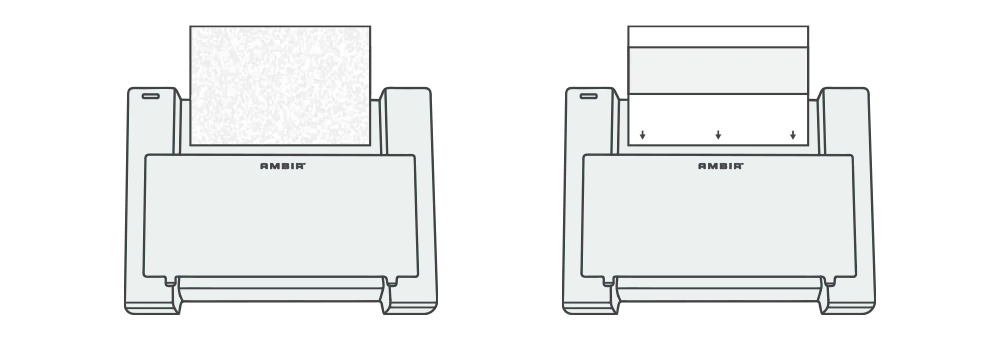
- First insert the included white textured cleaning sheet. Select Clean.
- Next insert one of the black and white calibration sheets into the scanner with the arrows facing downward. Select Calibrate.
Congratulations! You are now ready to begin scanning.

Quick Tips
- The scanner cable must always be connected to your computer to scan.
- Insert one photo at a time into the scanner tray – face down with the top edge first.
- Auto scan is turned on by default so your photo will scan automatically when placed in the tray.
- Look for your scanned image in the PictureStudio Inbox. You can change the scan destination to save directly into an album instead of your inbox.
For additional tips and guidance, refer to the PictureStudio User Guide